High-speed storage has become an essential part of modern creative workflows. Large RAW photo libraries, 4K and 8K video files, multicam projects, and fast turnaround deadlines all depend on the same thing: moving data quickly and reliably from one stage of the workflow to the next.
Most creators understand the importance of choosing a fast SSD, a professional memory card, or a high-performance card reader. But there is one part of the chain that is easy to overlook: the cable that connects everything.
In this article, we look at how cable quality and transfer speeds are connected, why USB-C vs. Thunderbolt 4 isn’t always as straightforward as it seems, and how choosing the right high-speed data cables for professional workflow devices helps protect both your time and your data.
Decoding the USB Chaos: Why Labels Matter
The challenge with modern cables is that the connector does not tell the whole story. USB-C describes the shape of the connector, not the speed of the connection. Two cables can look nearly identical, plug into the same port, and still perform very differently.
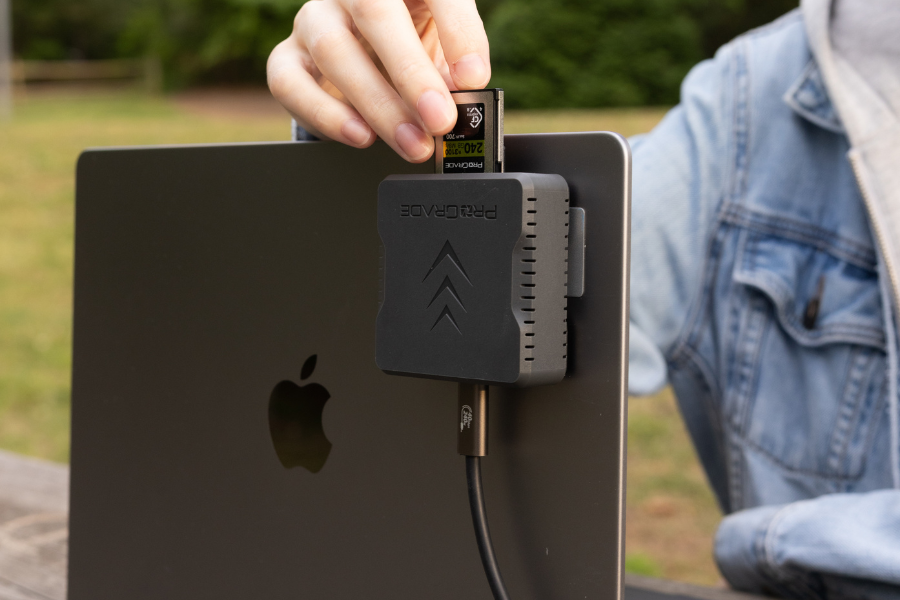
This is especially important in professional workflows, where the cable connects high-speed devices designed to move large amounts of data quickly. Your SSD, card reader, or memory card may support very fast transfers, but the workflow can only move as quickly as the connection allows.
For creators, the most important lesson is simple: USB-C does not automatically mean high speed. The detail that matters is the data standard behind the connector. That is what determines how much data the cable can actually move.
| Connector | Data Standard | Max Speed |
| USB-C | USB 2.0 | 480 Mbps |
| USB-C | USB 3.2 Gen 1 | 5 Gbps |
| USB-C | USB 3.2 Gen 2 | 10 Gbps |
| USB-C | USB 3.2 Gen 2×2 | 20 Gbps |
| USB-C | USB4 / Thunderbolt 4 | up to 40 Gbps |
| USB-C | Thunderbolt 5 | up to 80 Gbps / 120 Gbps boost* |
*Thunderbolt 5 supports up to 80 Gbps bidirectional bandwidth, with Bandwidth Boost allowing up to 120 Gbps in one direction for display-heavy workflows.
One USB-C cable may only support basic charging and slow USB 2.0 data transfer speeds. Another may support USB 3.2 Gen 2, USB 3.2 Gen 2×2 speeds, USB4, or Thunderbolt-class performance. To the eye, they may look nearly the same. In practice, the difference can turn a transfer that should take minutes into one that takes much longer.
On paper, these numbers are easy to compare. In reality, they are often hidden behind similar-looking connectors and unclear cable labeling. That is why cable labeling matters.
When a cable is clearly rated for a specific data speed, it removes uncertainty from the workflow. Instead of guessing whether a cable pulled from a drawer can handle a high-speed transfer, you know what the connection is designed to support.
ProGrade Digital’s USB 4.0, Thunderbolt 4, and Thunderbolt 5 cables are designed with this problem in mind. Each cable includes clear speed markings on the cable itself, making it easier to identify the right cable at a glance and avoid accidentally using a slower cable in a high-speed workflow.
Power vs. Data
Power and data should be treated as separate capabilities. Some cables are designed to carry higher wattage for charging. Others are designed for high-speed data. Professional workflow cables need to support both the physical connection and the bandwidth required by the devices in use.
A cable may support high-wattage charging but only slow USB 2.0 data transfer. Another cable may support high-speed data but limited charging power. For professional workflows, the safest choice is a cable clearly rated for both the required transfer speed and the required power delivery.
The Physics of Speed: What’s Inside a Quality Cable?
A cable’s speed is not only determined by the USB standard printed on the label. It also depends on how well the cable is built internally.
At high transfer speeds, the cable is no longer just a simple wire. It has to carry large amounts of data with minimal signal loss while resisting interference from nearby devices. If the cable is poorly made, too long, poorly shielded, or made with low-quality materials, the connection can become unstable or revert to slower speeds.
In practice, cable performance comes down to three things:
1. Conductor Quality and Gauge
The first factor is the quality and thickness of the internal conductors. The conductors inside the cable carry the electrical signal from one device to another. Better-quality copper and the right wire thickness help maintain a cleaner signal, especially when data is moving at higher speeds.
This is where AWG matters. AWG, or American Wire Gauge, refers to the thickness of the wire inside the cable. Lower AWG numbers indicate thicker conductors, which can help reduce resistance and maintain signal strength over greater distances.
Thin or low-quality conductors may work for charging or basic transfers, but they are more likely to struggle when moving large files at high speed.
2. Signal Loss Over Distance
The second factor is signal loss. As data travels through a cable, the signal naturally weakens. This is called attenuation. In a well-built cable, that loss is controlled. In a poor-quality cable, the signal can degrade enough to cause errors, retries, or speed drops. The transfer may still be completed, but it can take longer than expected.
3. Shielding Against Interference
The third factor is shielding. Professional workstations are often surrounded by monitors, power bricks, drives, routers, hubs, and other electronics. All of these can create electromagnetic interference, also known as EMI.
A properly shielded cable helps protect the data signal from that noise, keeping the connection more stable during sustained transfers.
Key takeaway: The important point is not that every creator needs to understand cable engineering. It is that high-speed data transfer depends on signal integrity. This is why two cables with the same connector and even the same advertised standard may not perform equally in practice. A high-quality cable is built to preserve that signal from the device to the computer, so the rest of the workflow can run at the speed it was designed for.
The E-Marker Chip: The Cable’s Built-In Identifier
Some high-performance USB-C cables include a small chip inside the connector called an E-Marker. It serves as an identifier for the cable, allowing connected devices to understand what it is designed to support.
When a computer, SSD, card reader, or power source is connected, the devices do not blindly push maximum speed or power through the cable. They first negotiate what the connection can safely handle. The E-Marker helps communicate key cable capabilities, such as supported data speed, power rating, and cable type.
This matters because high-speed transfers require more than a connector that fits. The computer and device need to know whether the cable can support the requested bandwidth. If the cable cannot confirm the required capability, the connection may fall back to a slower mode or limit power delivery.
For professional workflows, this adds an important layer of reliability. An E-Marked cable helps the system establish a safe connection, instead of relying on guesswork. For creators, that means less uncertainty. A properly rated, E-Marked cable gives the system the information it needs to support fast, stable, and safe transfers.
Why E-Marker Chip Matters for Performance
With high-speed SSDs and card readers, the cable must support the full path between the device and the computer. The E-Marker helps ensure the connection is negotiated correctly, so the hardware can operate at the highest speed supported by the entire chain.
Without that information, a cable may still work, but not necessarily at the expected speed.
Why E-Marker Chip Matters for Safety
Power delivery is also part of the negotiation. When higher wattage is involved, the cable must be able to safely carry that power. The E-Marker helps connected devices recognize the cable’s power capability before drawing more current.
That protects the cable, the connected hardware, and the workflow itself.
Real-World Impact: How Much Time a Slow Cable Can Cost
The impact of cable quality becomes clear when you put real transfer times next to each other.
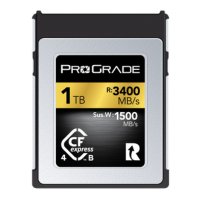
Say you need to copy the entire 1.6TB ProGrade Digital CFexpress™ Type B 4.0 Iridium Memory Card to your computer’s internal SSD.
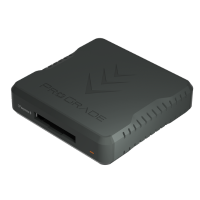
If that card, capable of transferring data at 3.55 GB/s, is offloaded via a ProGrade Digital CFexpress Type B Reader that supports data rates up to 5 GB/s, but using a low-bandwidth USB-C cable limited to USB 2.0 speeds, the entire chain is capped at 480 Mbps or 60 MB/s. At that speed, moving 1.6 TB would take around 7 hours and 24 minutes.
At the same time, with a certified Thunderbolt 4 cable, or a certified USB-C 4.0 cable (both supporting up to 40 Gbps or 5 GB/s), the transfer is no longer limited by the cable. Instead, the workflow can run at the card’s full read speed. At 3.55 GB/s, moving 1.6TB of data would take only 7.5 minutes.
Building a Cable Kit You Can Trust
Once you understand how much a cable can affect transfer speed, the goal is not to inspect every cable like an engineer. The goal is to remove uncertainty from the workflow.
A professional cable kit should be built around known performance. That means using cables with clear data ratings, adequate power support, robust construction, and sufficient durability to maintain performance over repeated use.
In practice, that comes down to a 6 simple checks before a cable becomes part of your working kit:
1. Match the Cable to the Fastest Device
Start with the fastest device in the chain. If your SSD or card reader supports USB4 or Thunderbolt-class performance, the cable should support the same level of bandwidth. Otherwise, the connection will fall back to the fastest speed the cable can handle.
This is especially important with high-speed card readers and external SSDs, where the difference between the right and wrong cables can be measured in hours.
2. Look Beyond the Connector
Do not choose a cable only because it has USB-C connectors on both ends. Look for the actual data rating: USB 3.2 Gen 2, USB 3.2 Gen 2×2, USB4, Thunderbolt 4, or another clearly stated standard.
The same applies to power delivery. A cable that charges a device successfully may still be too slow for professional data transfer. For SSDs, readers, hubs, and laptops, both the data rating and power rating matter.
3. Choose Cables Built for Repeated Use
Cable performance also depends on how well the cable holds up over time. In real workflows, cables are bent, packed, coiled, pulled from bags, used on desks, and moved between locations. Weak connector housings, poor strain relief, or damaged internal wiring can lead to intermittent connections and unstable transfers.
Durability is not only about the cable surviving physically. It is about maintaining signal integrity after repeated use. Reinforced connectors, proper shielding, braided jackets, and strong strain relief help keep the connection stable over time.
4. The “Weight and Feel” Test
Cable weight is not a technical specification, but it can be a useful first clue.
A high-quality cable often feels more substantial because it contains better shielding, thicker conductors, stronger connector housing, and proper strain relief. A very thin, flimsy cable may still work for charging or basic transfers, but it is less likely to be built for sustained high-speed data movement.
This does not mean heavier always equals faster. The actual data rating still matters most. But when a cable feels unusually light, loose, or poorly finished, it is worth treating it as a warning sign rather than trusting it with professional transfers.
Frayed internal wires (from a cheap plastic casing) can cause intermittent connections and corrupted files.
5. Verify Before You Trust
The easiest way to identify a slow cable is to test it in your own workflow. Connect the same SSD or card reader with different cables and compare transfer performance using tools like Blackmagic Disk Speed Test, AmorphousDiskMark, AIDA64 Disk Benchmark, or a simple manually timed folder transfer.
If one cable consistently performs well below the device’s expected speed, label it for basic use or remove it from the kit.
6. Standardize the Cables You Rely On
The safest professional setup is not a drawer full of mystery cables. It is a smaller set of known, clearly rated, tested cables that match the devices you actually use.
Browse ProGrade Digital High-Bandwidth Data Cables with reinforced connectors, braided jackets, and stress-relief designs that maintain signal integrity after thousands of bends.
Final Words: Cable Quality and Transfer Speeds
The best workflow tools are the ones you do not have to think about once the work begins. A cable should be one of them.
When it is clearly rated, properly built, and matched to the devices it connects, it disappears into the workflow and lets the rest of the system perform as intended.
That is the value of a trusted cable: less guessing, fewer bottlenecks, and more confidence every time data moves from one stage of the project to the next.