Dual card slots are built to keep your work safe and your workflow running. But how you use them determines how much protection or running you actually get.
In this article, we look at best practices for dual card slot usage; how professionals configure their cameras for maximum data security and a workflow that never slows them down.
Understanding Dual Card Slot Configurations
At first glance, every dual-card slot system looks the same. But in the field, small choices in how you use them make a big difference. Your configuration completely changes the role of the second card.
It can be a safety net, an extension of storage, or a tool for keeping your files organized. What matters is knowing what each mode really does and setting it up with intention. Here’s how to make sense of them:
1. Backup (Redundancy Mode)
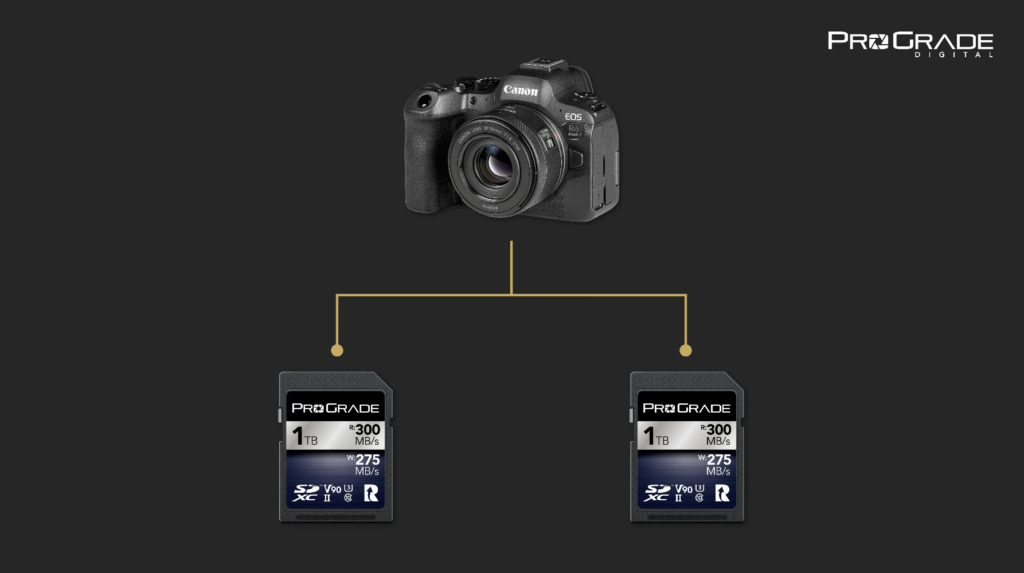
This is the setup most professionals rely on when the job allows no room for error. In this mode, the camera writes every image or video to both cards simultaneously. If one card fails, the other still holds a complete copy.
It is the safest configuration for work where moments cannot be repeated. The trade-off is storage space, but for critical shoots, such as events, weddings, and live performances, the peace of mind is usually worth it.
Backup mode also simplifies and speeds up post-production. You finish the shoot with backups already made, so there is no need to spend time duplicating files or checking transfers. Your media is safe and ready to edit the moment you get back.
2. Overflow (Sequential Mode)
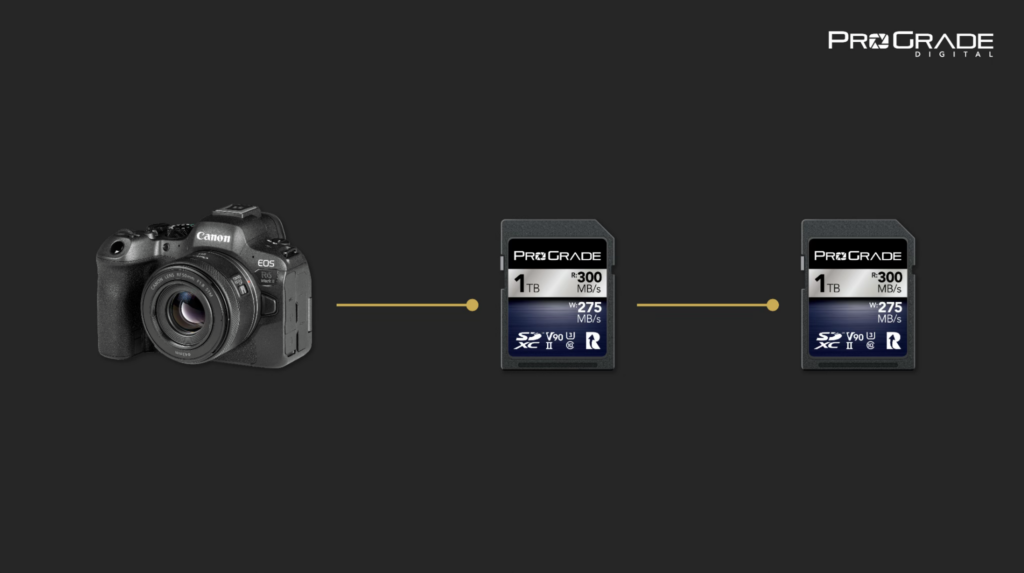
This mode is designed for endurance. When the first card fills up, the camera automatically continues recording onto the second card. It is a practical choice for time-lapses, extended interviews, and long shoots where stopping to swap cards could mean missing something important.
The compromise is capacity over safety: if something fails before you offload and back up, that data is gone. You gain capacity, but lose redundancy, so the backup still needs to happen after the shoot.
In this configuration, memory card reliability becomes especially essential. When your entire shoot depends on a single piece of media, you want one with industrial-grade NAND memory cells certified for sustained writing, with precision-assembled controllers created to handle heavy data loads without faltering, and advanced firmware that constantly monitors and corrects data as it is written. Not to mention durability — a shock, dust, and water-resistant build — to give you an extra peace of mind.
All ProGrade Digital memory cards are designed with one goal in mind: to give you confidence that your work will be stored and make it safely from camera to edit, no matter what the day throws at you.
3. RAW and JPEG or High-Res and Proxy Split
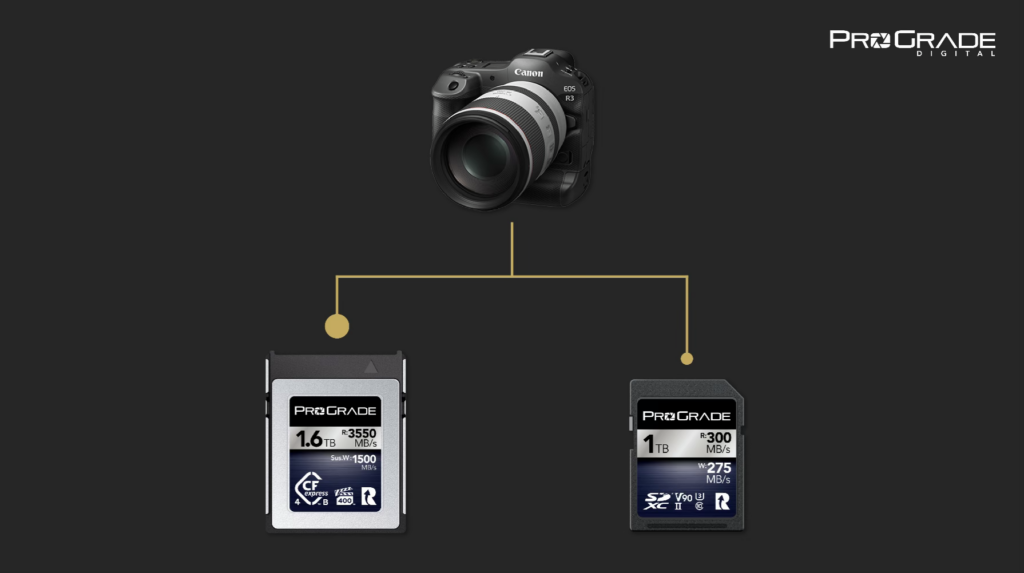
Many cameras allow saving different file types of the same image to separate cards. RAW photos or high-bitrate video can be stored on one card, while JPEGs or proxies can be stored on the other. This setup keeps your master files untouched while giving you lighter files for previews, sharing, or quick client delivery. It is an efficient way to simplify post-production and organize your files from the start.
For solo photographers who edit everything themselves and don’t need instant delivery, the split mode adds complexity without much benefit. It shines only when speed and collaboration matter (when other people need access to files before the shoot is even finished).
For solo filmmakers, on the other hand, this split makes sense even when there is no need for instant delivery. Walking away from a shoot with proxies already made saves a lot of time in preparation for editing.
Dual Slot Compatibility and Mixed Formats
Not all dual-slot systems use two identical memory card slots, such as SD and SD. In fact, many cameras combine formats such as one high-speed CFexpress Type B (or Type A) slot and one SD UHS-II card slot.
Identical slots are best for backup and overflow, since both cards perform at the same level. When the slots differ, however, the slower card always determines the overall speed. Recording identical files to both cards in that case can slow down burst shooting or limit video recording performance.
Mixed systems are therefore best for dividing the workload. For recording primary data (RAW photos and high-resolution video) to the faster card and use the slower card for smaller files (JPEGs, proxies).
Best Practices for Dual Card Slot Usage
The following best practices come straight from the field, showing how professional photographers and filmmakers keep their data safe and their process consistent.
1. Match Your Slot Configuration to the Shoot
Dual card slots do not make your workflow safer by default. Their value comes from how you use them. Each mode serves a purpose, but only when it matches your intent. Used without understanding, it can easily give a false sense of security.
Set them up for backup, and they become a safety net. Set them for overflow, and they give you extended capacity. Set them up for workflow efficiency, and they make the post-production fly by. Problems can appear when these three ideas are confused.
In short, there is no single right way to use dual card slots, but there is a right way to make them work for you: set them up before the shoot. Not during it. Too often, photographers leave the default setting unchanged, assuming both cards are active when only one is actually recording.
Before a shoot, open your camera’s recording functions menu and check what each slot is assigned to. You’ll usually see options like “Record to multiple,” “Record separately,” or “Auto switch card.” Set these deliberately based on your goal for the day: redundancy, capacity, or workflow efficiency.
If you’re switching between stills and video, verify that both modes are properly configured. Some cameras, especially hybrids, store separate settings for photo and video modes, meaning redundancy might only apply to stills unless you enable it twice.
2. Always Format Both Cards In-Camera Before Every Shoot
Before every shoot, take a moment to format both cards in your camera. This clears any leftover data, ensures the file system matches your camera’s requirements, and minimizes the risk of write errors or corrupted files.
3. Run a Test Shoot
Always run a short test before an important shoot to confirm that your camera is performing exactly as you expect it to. Dual-slot behavior can change between photo and video modes or after firmware updates, so never assume your settings carry over.
Capture a few still images and short clips, then check both cards to verify that the files are being recorded in the correct locations and in the correct format. It takes less than a minute and can save an entire day’s work.
4. Use Cards with the Same Speed Rating
Your camera’s performance is only as fast as the slower card you insert. In other words, the slower one always dictates the speed at which your camera can write data. If one card is built for professional 8K video and the other for casual photography, the faster card will simply slow down to match the weaker one. Often without warning.
To avoid that, pay attention to the speed ratings printed on your cards. For SD cards, look for the Video Speed Class (V) rating – V30, V60, or V90 – and also check the card’s listed write speed for a clearer picture of continuous performance.
For CFexpress and CFast cards, the relevant certification is the VPG (Video Performance Guarantee) rating, which indicates a guaranteed minimum sustained write speed.
That said, the highest VPG level available for these cards is VPG400, meaning the rating system can certify up to 400MB/s of minimum sustained write performance. That is helpful, but it does not give you the full picture, as many ultra-fast CFexpress cards operate far beyond this range. This is why ProGrade Digital lists the sustained write speed directly marked on a card label with “Sus W”, followed by a number in MB/s. It shows the card’s true capability, beyond the VPG scale.
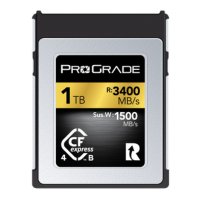
For example, ProGrade Digital CFexpress™ Type B 4.0 Gold Memory Cards list sustained write speed directly as Sus W, with values ranging from 700MB/s to 1,500MB/s depending on capacity. This allows users to match the card to the actual data rate their camera produces during continuous recording. When working with high-bitrate formats such as 8K, knowing the sustained write ceiling helps ensure the card can maintain recording over long takes without hitting performance limits, regardless of how aggressive the codec or frame rate becomes.
If your camera has two identical slots (such as dual SD or dual CFexpress) and your goal is either redundancy or overflow, use cards with the same write rating or sustained write speed to get consistent performance.
High-bitrate video modes often require a minimum sustained write speed. If one of your cards doesn’t meet that requirement, the option to record in those formats may disappear entirely. For example, when a V90 card supports high-bitrate and high-framerate 4K capture, while a slower V30 card does not, you will lose the ability to shoot that format simultaneously to both cards, as your camera will behave as if both cards were V30.
If your camera uses different slot types (such as CFexpress and SD) and you assign them separate file types (e.g., RAW and JPEG, or high-res and proxy), then speed matching becomes less important. Not to say impossible, as these cards are miles apart from each other anyway.
In short, when both cards are meant to do the same job, they should perform at the same level. That’s how you keep your camera running at full potential without hidden slowdowns or recording limits.
5. Balance Card Capacities
If you record the same files to both cards for backup, use cards with the same capacity to keep your system running smoothly. Matching capacities between cards helps your camera manage data evenly. If one card fills up before the other, you’re forced to swap out that half-empty card as well, unless you’re fine with mix-matching data and are okay with managing potential confusion about which card holds what.
Also, when one card fills up before the other, the camera may stop recording or switch modes without warning, interrupting your workflow. Matching capacities ensures both cards fill and empty in sync, which is especially important for long shoots or when using redundancy mode. It keeps your backups complete and prevents one card from becoming the weak link in your workflow.
That said, if you choose to fill the cards consecutively (overflow mode) then matching capacities is not that critical. Using different capacity cards won’t create any hiccups in your workflow, as cards are not used simultaneously. Simply select the ones that best suit your total capacity needs.
Now, if you use each slot for different purposes (RAW files on one card and JPEGs or proxies on the other) matching capacities GB to GB is no longer critical. RAW files are significantly larger, meaning that one card will always fill up faster.
A simple calculation before a shoot helps you stay balanced. Take a few photos in each format, check the file sizes, and calculate roughly how much space you need on each card to hold an equal number of images.
For example, if you expect to shoot around 2,000 images during a session and your files average 20MB for JPEGs and 70MB for RAWs, you’ll need roughly 40GB of space for the JPEGs and about 120GB for the RAWs. In practice, this means pairing a 64GB card for JPEGs with a 128GB card for RAW images to accommodate all the images of both formats.
6. Avoid Mixing Card Brands and Quality Levels When Possible
Using cards from different brands or quality tiers may seem harmless, but it can often lead to unpredictable results. Even if both cards have the same form factor and list similar performance metrics, their internal components (controllers, firmware, and memory cells) will differ and behave differently under pressure. The camera must constantly balance performance between the two, which can slow transfers, cause delays when buffering, or, in rare cases, create file errors.
Think of your cards as a matched set. When they share the same brand, series, and quality standard, they perform consistently and age at the same rate. Rotate them evenly, retire them together, and replace them as a set. This not only keeps your workflow stable but also reduces the risk of one weaker card compromising an otherwise reliable system.
7. Label and Rotate Cards Consistently
Shooting on two cards simultaneously means you have twice as much data and twice as many memory cards to handle. An organized data management and card rotation system saves time and prevents costly mistakes, especially when dealing with multiple cards.
Every card should have a clear place and purpose in your workflow, so you always know what’s ready to use and what’s safely backed up. A few simple habits make a big difference in keeping things smooth and error-free.
Here’s how to keep your data safe:
- Develop a clearly defined card-handling routine. A card handling routine that suits your workflow —offload, verify, reformat — builds muscle memory that prevents costly mistakes under pressure.
- Label your cards clearly. Use a fine waterproof marker to number them or assign them to specific projects.
- Separate full and empty cards in your wallet or case. Many creators keep full cards face down and empty ones face up (or vice versa) to instantly see which ones are safe to use.
- Use custom folder and file naming. Setting unique file and folder naming conventions helps keep files organized and avoid confusion.
A simple, yet consistent system like this keeps your workflow clear and prevents confusion, even when you’re moving fast between shoots.
8. Verify Backups Before Formatting
Even with dual-card redundancy, the biggest risk to your footage isn’t card failure; it’s human error. Formatting too early, removing batteries from a camera without shutting it down properly, or assuming files have transferred successfully before disconnecting the reader can wipe out hours of work in seconds.
Always confirm that both cards have been fully offloaded and the files open correctly before formatting and reusing the cards. Backup verification software can automatically check file integrity, ensuring that nothing is missing or corrupted. Only then should you reformat the cards in-camera.
While tools like ProGrade Digital’s Recovery Pro can help recover files in worst-case scenarios, prevention is always the safer route. Double-checking your backups takes a minute; rebuilding lost work can take days, weeks, or even months. In the worst cases, what was just accidentally lost can never be re-shot.
Choosing the Right Memory Cards For Your Dual-Slot Camera
When it comes to choosing the right memory cards for dual-slot cameras, the process is not significantly different from selecting memory cards for single-slot cameras. It really comes down to two things: what your camera requires and how you work. The only difference, an additional thing to consider, with dual-slot cameras, is how you utilize the extra card slot. That’s it.
Every system has its limits, and every workflow has its cadence. The best cards are those that match both, ensuring your camera’s performance is not limited in any way and providing consistent speed, reliability, and sufficient capacity to shoot without interruption.
STEP 1: Match the cards to your camera’s requirements.
Before all else, check your camera’s user manual for supported formats, required write speeds, and certifications. Meeting or exceeding these standards ensures stable performance and keeps every recording mode available when needed.
Feel free to use our free memory card compatibility charts and data sheets to determine which cards best suit your dual-slot camera.
STEP 2: Match the cards to your workflow.
About Read & Write Speed:
Your camera may require only a V60 SDXC card, but that doesn’t automatically mean it’s the best card for you. If you move a lot of data, you may still benefit from a faster V90 SDXC card.
Compared to V30-rated cards, V60 cards offer double the sustained write speed, and V90 cards offer triple the sustained write speed. At the same time, it is equally important to pay attention to the read speeds. While this has no effect on your camera’s performance, it does play a role in the later stages of your workflow and how smoothly your entire production will flow.
About Capacity:
When it comes to capacity, bigger does not automatically mean better. Yes, if you’re filming long interviews, live performances, nature sequences, or lengthy timelapses that can’t be interrupted, large-capacity cards absolutely make sense. They keep your camera running and your focus (and that of your subjects) uninterrupted.
Yet in collaborative environments, smaller cards can sometimes benefit you more. Being able to pass full cards to your DIT or assistant allows backups and ingest (perhaps even the initial review and selection) to happen while you shoot. By the time you wrap, your media is already safe and ready to edit.
Using one large card means all your data moves at once after the shoot, rather than bit by bit as you go. While that delays backup for teams, it can be a time-saver for solo creators. You start the copy, walk away, and return to a complete transfer. No need to babysit the process or keep swapping smaller cards.
In short, think in terms of efficiency, not size. As with speed, the right card capacity also helps ensure your entire production flows smoothly.
STEP 3: Match Your Cards to How You Use Your Dual Slots
How you use your dual slots also determines what kind of cards make the most sense.
Backup Mode:
If you shoot in backup mode and both cards record identical data, use identical cards (the same brand, speed, and capacity) to keep the process seamless and predictable.
Overflow Mode:
If you rely on overflow mode, where the second card takes over once the first is full, you generally want larger capacity cards with higher sustained write performance. This minimizes card swaps and ensures your camera can keep recording without interruption.
On top of that, in overflow mode, you may also want to consider cards with a lower power consumption profile (yes, that is actually a thing), enabling extended battery life. For CFexpress Type A and Type B memory cards, for example, this means supporting power states PS0, PS1, PS2, PS3, and PS4, with PS4 power consumption under 2mW.
Mixed Setups:
In mixed card setups, it’s fine to mix capacities and speeds, but only if you do so intentionally. When your camera uses two different slots, such as CFexpress and SD, the choice becomes one of balance. The CFexpress card will naturally handle the heavy lifting, but the SD card shouldn’t drag the system down. Therefore, it is recommended to pair it with the fastest SD card available.
CFexpress™ Type B 4.0 Memory Cards have sustained write speeds of up to 1,500MB/s. Pairing these cards, for example, with SD UHS-I cards that have a U1 speed rating and are capable of sustaining only a 10MB/s write speed does not make much sense.
A fast SD card alongside a CFexpress keeps the system responsive and your workflow consistent, whether you’re recording simultaneously or dividing tasks between the two cards.
Best Memory Cards For Dual-Slot Cameras
On the surface, every memory card looks the same: a thin rectangle, a few connectors, a logo.
Differences start to surface only when you push them to their limits.
Under pressure, mass-market cards slow down, overheat, begin to drop frames, and reduce burst durations. They’re simply not made for the days when you’re knee-deep in dust, heatwaves bending the air, and the shot you’ve chased all morning finally happens. This is not when you want to see the buffer light blinking.
This is where professional-grade memory cards come in: trusted by professional filmmakers and photographers to capture the excitement and elation of the Olympic Games, sharks and jaguars for National Geographic, and high-definition video from a WRC car racing at 120mph.
We kindly invite you to explore the cards that make all that possible: ProGrade Digital memory card lineup for dual-slot cameras.
Each ProGrade Digital card undergoes component-level testing, thermal endurance verification, and sustained write-speed validation. All high-speed ProGrade Digital cards are also compatible with Refresh Pro, a free desktop utility that allows you to test your cards before critical shoots. It checks the health of the memory cells and verifies that your cards are ready to record. And if the unforeseen ever happens — a card is formatted too early or files are accidentally deleted — Recovery Pro stands by to help you restore what matters.
Final Words: Best Practices for Dual Card Slot Usage
Dual slots exist to make your workflow stronger. Once you set them up with intention, your camera becomes an extension of your workflow, not a point of uncertainty. We hope this article helps you get there. To the point of confidence where you can press record and never think twice about what happens next.