Keeping your gear up-to-date isn’t just about cameras and computers. Memory cards also have firmware that sometimes needs updating. This guide will explain why these updates matter, how they work, and provide a step-by-step roadmap for performing a memory card firmware update. All that in a user-friendly way.
And because we live and breathe this stuff (heck, some even call us memory card geeks), we can’t resist giving you a behind-the-scenes look at what’s really going on under the hood of the memory card when an update runs. It’s the kind of detail that gets us excited. But if you’re more about the “how” and you’re not here to fully geek out, feel free to skip ahead to the practical parts.
What Is Memory Card Firmware?
Memory card firmware is the low-level software embedded in the card’s controller. It’s essentially the “brain” inside the card that manages how data is stored and retrieved.
Memory card firmware also handles tasks like wear leveling (evenly distributing writes across the flash memory to improve the card’s longevity), error correction, and communication with your camera or device. In high-performance cards, the controller even tracks health metrics to gauge how much life the flash memory has left.
Not All Memory Cards Support User Updates
It’s important to note that not every memory card can be updated by the user. In fact, user-installable firmware updates for memory cards are a relatively new development.
Most memory cards from major brands have their firmware locked down; if those cards ever receive a firmware change, it would typically only be when the manufacturer produces a new batch of cards at the factory.
In practical terms, for many cards, there is no field upgrade path. What you bought is what you’ve got. If a compatibility issue or bug arises in such cards, the only remedies are often workarounds or getting a newer card model.
Only a few forward-thinking companies have introduced field-upgradable firmware in their memory cards. These cards are usually explicitly marketed with this capability. If a card supports user updates, it will be clearly indicated by the manufacturer.
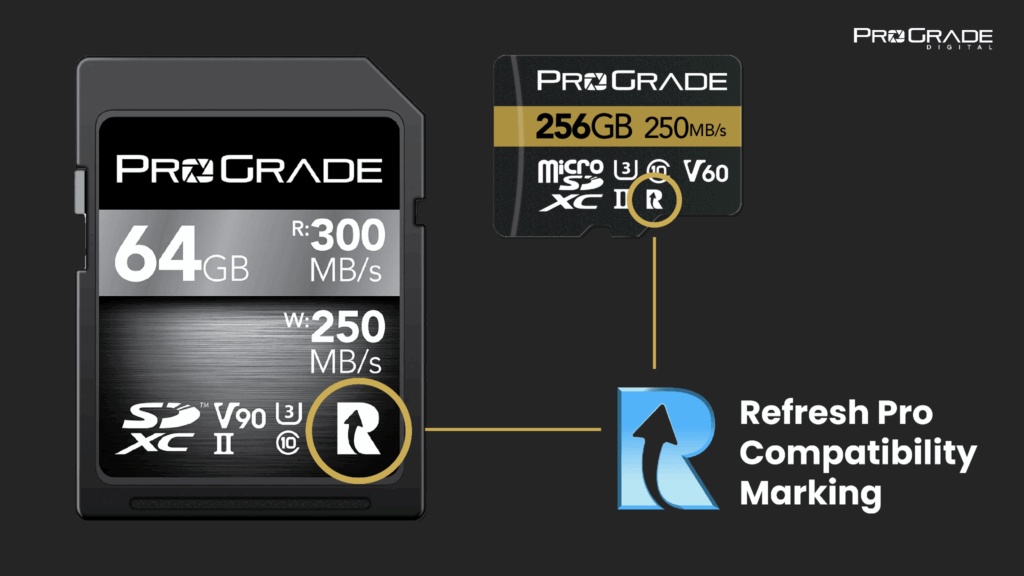
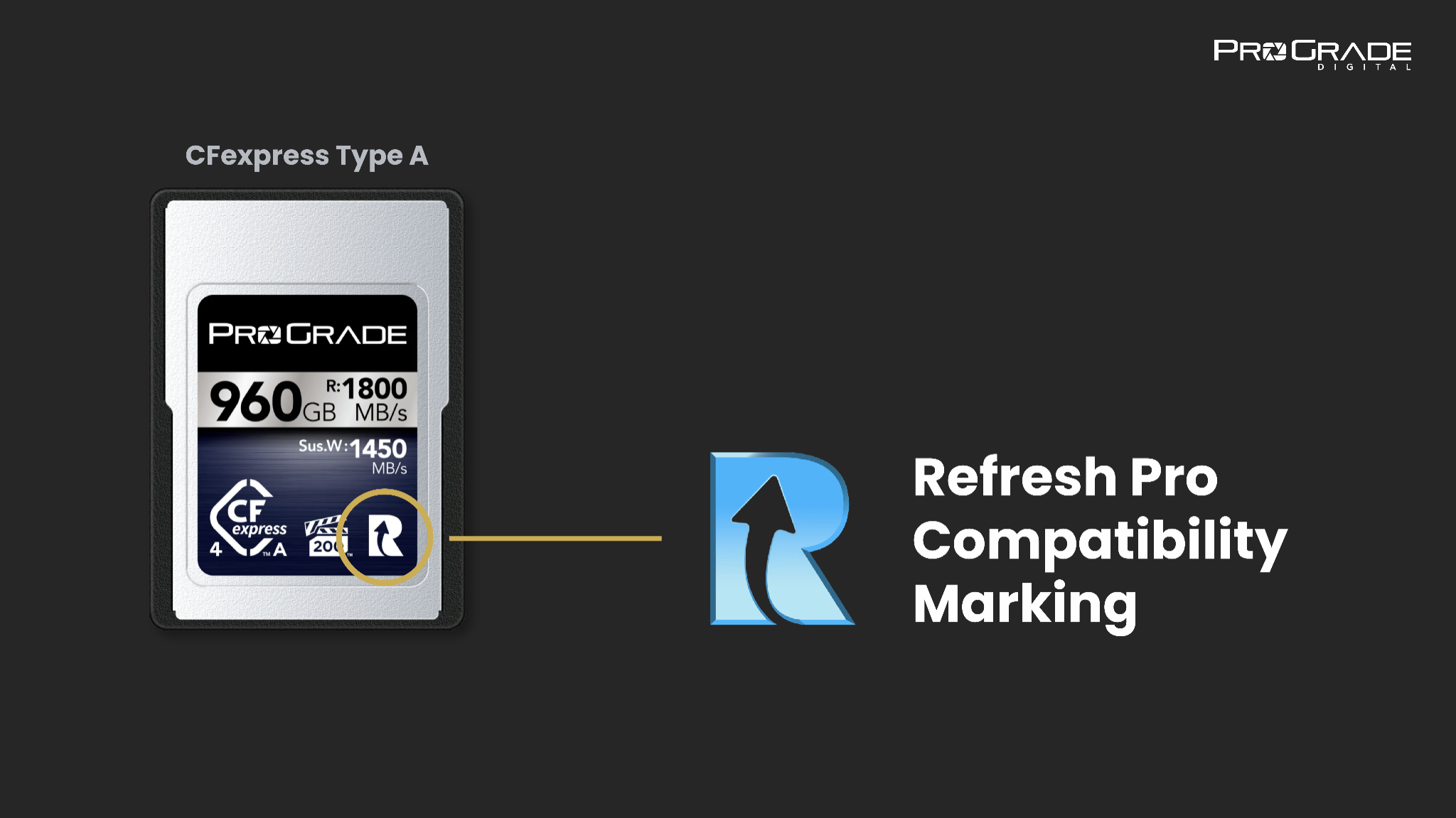
In ProGrade’s case, our recent card line is designed to be field firmware upgradable (FFU), meaning users can update the card’s controller software themselves. All compatible cards carry a special “R” logo on the label (as seen on an image below), signifying they work with the Refresh Pro firmware update and health monitoring software. This software is free for all ProGrade memory card users.
Why don’t all cards have this? Implementing field-upgradable firmware requires planning and additional engineering. We built custom capabilities into our cards and readers from the beginning to enable health checks, firmware upgrades, and sanitizing functions. The latter, sanitize function, allows you to restore your memory card’s flash memory to a factory-fresh state, further increasing the lifespan of your memory card.
In essence, the ability to update a card isn’t a standard feature of SD or CFexpress protocols. Instead, it’s a proprietary extension offered by certain manufacturers via their own ecosystem. Thus, you can only update a card’s firmware if the card’s maker provides a tool or method to do so.
If your card’s brand does not provide any firmware update utility, you likely won’t be able to update that card on your own. (In critical cases, the manufacturer might offer a swap or service if a firmware fix is needed, but this is rare.)
This makes field-upgradable cards quite valuable for professionals. It means your investment can adapt and won’t be rendered obsolete by a new camera or minor glitches. Most importantly, upgradable cards provide greater data integrity, as even the slightest incompatibility issues can be ironed out with firmware updates.
The bottom line: check if your memory card is user-upgradable. If yes, take advantage of that capability. If not, keep it in mind and monitor its performance closely, especially when it is an older card. If you notice deviations from normal (for example, the card seems to operate slower than it used to), consider retiring the card.
Why Update Your Memory Card’s Firmware?
Updating a memory card’s firmware can provide several important benefits:
1. Improved Compatibility with New Gear
One of the primary reasons to update is to ensure your card remains fully compatible with the latest cameras, codecs, and file formats. When new camera models or new video codecs are released, memory cards may need firmware tweaks to optimize for these new features and ensure 100% compatibility. For example, a firmware update can tailor the card’s performance to a new camera’s data rate or protocol quirks. Without an update, an older card might work sub-optimally (or not at all) in a cutting-edge camera. Firmware updateable cards are future-proof and ensure your card is ready for upcoming tech.
2. Performance Enhancements
Firmware updates can unlock better speed and stability. Manufacturers invest heavily in research and development, and whenever a new way is discovered to make the card write data more efficiently or manage power/heat better via a firmware tweak, an update is issued. For instance, an update might improve sustained write speeds for high-bitrate video recording or reduce occasional slowdowns caused by bursting RAW photos.
3. Bug Fixes and Reliability
If any firmware bugs are discovered that could cause errors, data hiccups, or device incompatibilities, an update can fix those issues. This might include correcting a rare corruption issue, addressing an improper error-handling routine, or adjusting how the card responds to certain camera commands. When it comes to consumer-grade cards, if a memory card has a firmware bug, users are essentially stuck with it (if the manufacturer does not revise the product). At the same time, critical fixes can be delivered to existing high-end memory cards via simple updates, avoiding recalls or replacements.
4. Extended Lifespan
Some updates may adjust how the card manages its flash cells or thermal throttling, effectively extending its usable life under heavy workloads. For example, an update might refine the card’s power management or wear-leveling algorithms to reduce heat build-up during the 8K video recording. By keeping the card’s firmware current, you ensure it operates within safe temperatures and doesn’t wear out prematurely under intense use.
In short, a firmware update can make your existing memory card “smarter” and more optimized, adapting it to new equipment and usage patterns and correcting any flaws discovered after release. This gives photographers, filmmakers, and creators peace of mind that their cards will reliably keep up with evolving needs.
How Do Firmware Updates Work? (Under the Hood)
Updating a memory card’s firmware is a technical process. Still, in simple terms, it’s similar to updating the firmware of an SSD or a camera. The new firmware code must be transmitted to the device’s controller and written into its non-volatile memory. Here’s a breakdown of how memory card firmware updates work behind the scenes:
The Role of the Update Software
To update the firmware of a memory card, it is important to establish a connection with the card’s controller at a low level. Standard computer operating systems don’t have built-in commands for updating a memory card’s firmware; it’s not like copying a file on a card. For that, the card maker provides a software utility that controls the update. This software knows how to communicate with the card; it uses proprietary protocols to talk to the controller.
Firmware Updates Need Direct Hardware Access
In many cases, the card must be connected via a specific card reader that can pass the special commands through. A generic USB card reader might block or not support the manufacturer-specific command sequence needed to update the firmware. For example, ProGrade Digital’s software works only with ProGrade readers because these readers are designed to allow the necessary low-level access to memory cards. This is similar to how some PC SSDs require being attached to a motherboard SATA/NVMe slot (not a USB dock) to update. The direct connection allows firmware-level commands.
Writing the Firmware On a Card
When you initiate an update, the software identifies the card model and current firmware version and then determines if a newer version is available. If so, it will load that firmware (often a binary file) and send it to the card’s controller via the card reader. This process is usually done in a way that maintains data integrity. This means that the card’s previous firmware remains active until the new one is fully written and verified, minimizing the risk of ending up with a “bricked” card.
Nonetheless, it’s critical not to lose power or remove the card during this process. The card’s controller, once in firmware update mode, will accept the incoming data and program it into its internal firmware storage (which might be a small flash memory area on the controller). After successful writing, the controller typically resets or re-initializes with the new firmware. The update tool should then confirm the new firmware version. This entire procedure is usually quick, often taking only a few seconds to a minute, because firmware files are small (far smaller than your media files).
Safety Checks
Good firmware update tools include safety checks. They will verify you have the correct card (e.g., matching model and region). They may refuse to proceed if any error is detected. The update files and process are also usually digitally signed or cryptographically secured by the manufacturer to prevent any chance of installing tampered or incorrect firmware. ProGrade’s Refresh Pro, for instance, will only enable the “Upgrade Firmware” option if it recognizes a supported card that indeed has an update available.
From a user perspective, you don’t see most of this complexity. You just click “update” in the software. However, these steps underscore the importance of using official tools and recommended readers, as the card’s firmware update is a highly specific process involving the software, the card, and the reader hardware. The proprietary nature of this process is also why one brand’s update tool won’t work on another brand’s card. Each company’s cards speak a “language” that only their tool (and controller design) understands.
Step-by-Step: How to Update Memory Card Firmware
Now that we’ve covered the why and what, let’s get hands-on. In this section, we’ll walk through a step-by-step guide to updating a memory card’s firmware. We focus on ProGrade Digital memory cards and use ProGrade Digital’s Refresh Pro software, which is one of the leading implementations of in-field memory card firmware updates. That said, even if you use a different system, keep reading; the overall flow will be similar.
The process is user-friendly and doesn’t require deep technical knowledge. Just follow the steps carefully.
Before you begin, make sure you have the necessary tools at hand:
- A compatible memory card. Ensure your memory card actually supports firmware updates. Look for the “R” logo on the card’s label, which indicates Refresh Pro compatibility (see image below).
- A compatible card reader. Likewise, use a ProGrade Digital card reader that has the “R” logo on its packaging. Only these readers enable the update functionality.
- Refresh Pro software installed on your computer. Download the latest version of ProGrade Digital’s Refresh Pro and install it on your PC or Mac.
Once you have the setup ready, follow these steps to update your memory card’s firmware:
1. Back up your data(!)
Before doing anything else, copy all files from the card to a safe location. Firmware updates typically don’t erase data, but it’s always best to play it safe.
2. Connect the reader and insert the card
Plug in your ProGrade reader and insert the compatible memory card.
3. Launch the Refresh Pro application
Open the Refresh Pro software on your computer. You should see an interface that recognizes your card reader and any cards inserted. Make sure your internet connection is active, as the software needs to check for the latest firmware online.
4. See if a firmware update is available
Refresh Pro will automatically notify you if the inserted card’s firmware is out-of-date and a firmware update is available. If you don’t see an option to update your card, congrats, your card is already up-to-date.
5. Initiate the firmware update
If an update is available, click the update button. You will get a prompt confirming that you want to proceed with updating the card’s firmware. Confirm and proceed. At this stage, do not remove the card or disconnect the reader. The software will begin transferring the new firmware to the card. This usually only takes a few seconds up to a minute.
6. Eject and test the card
After a successful update, safely eject the card and test the card in the device (i.e., camera) you primarily use it with. The camera should recognize the card as usual. Take a couple of test shots or record a short video to ensure everything operates smoothly.
7. (Optional) Format or sanitize the card
A firmware update itself does not erase the card’s data, but if the card has any file system issues or if you just want to start fresh, you can use a “sanitize” feature in the RefreshPro app. This will perform a deep refresh on a flash memory cell level and put the card in a factory-fresh state. Do it periodically to maintain peak performance.
Remember(!), if you choose to sanitize, back up all files first, as it wipes the card completely. If you accidentally format a card in a camera, in most cases, you are still able to recover your files. This is so because formatting the card in the camera usually only clears the file allocation table (allowing new data to overwrite the old data). The sanitize function, however, cleans every single memory cell on a card, and hence, nothing is recoverable.
Pro Tips and Best Practices for Firmware Updates
- Use official sources. Always download firmware tools or files directly from the official manufacturer’s website or a trusted source. Do not trust random third-party downloads, as malicious or incorrect firmware can irreparably damage your card.
- Ensure a stable environment. Perform the update with a reliable USB connection and on a device (computer) that has a steady power source. If on a laptop, plug it into AC power to avoid it sleeping or dying mid-update. Do not remove the card or unplug the reader until the software says it’s safe. Interrupting a firmware update can leave the card in an unusable state. If an interruption does happen, do not use the card in a camera. Instead, try the update again with the tool or contact support for a recovery method.
- Keep the update software itself up-to-date. Manufacturers may update the card update utility itself (for example, Refresh Pro might get updates). Using the latest version of the software ensures it recognizes new card models and includes the latest fixes. It may also ensure compatibility with your computer’s OS updates. Check the manufacturer’s site periodically for software updates.
- Monitor card health regularly. Since tools like Refresh Pro also offer health diagnostics, incorporate those into your routine. For instance, before a big shoot or trip, run a health check on your cards. This can warn you if a card is nearing wear-out or has some issues. It’s much better to retire a card on your own terms than to have it fail during a once-in-a-lifetime shoot. Firmware updates won’t make a worn-out card new, but combined with features like sanitizing, they help you get the most out of your card while using it safely.
Final Words: Memory Card Firmware Updates
Memory card firmware updates might sound technical, but they boil down to keeping the tiny controller inside your card running at its best. For serious photographers and content creators, this is part of maximizing the performance and reliability of your gear.
In the ever-evolving world of cameras and imaging technology, it’s refreshing (no pun intended) to know that your memory cards can evolve too. So, as you pack your gear for your next shoot (be it a professional assignment or an adventurous trip), take a moment to check if your cards are up-to-date. Keeping your memory card firmware updated and flash memory itself refreshed and healthy is now part of good camera maintenance. It ensures that when new features or formats emerge or when you push your equipment to the limits, your memory cards will be ready to perform flawlessly.
Happy shooting, and don’t forget to give your memory cards a little “digital tune-up” when needed!